1. Access the PayNet Dashboard:
- Open the PayNet Dashboard in your browser.
- Log in using your credentials.
💡 Tip: Use a supported, up-to-date browser for the
best dashboard experience.
⚠️ Warning: Ensure your login credentials remain confidential.
2. Navigate to the One Stop Portal:
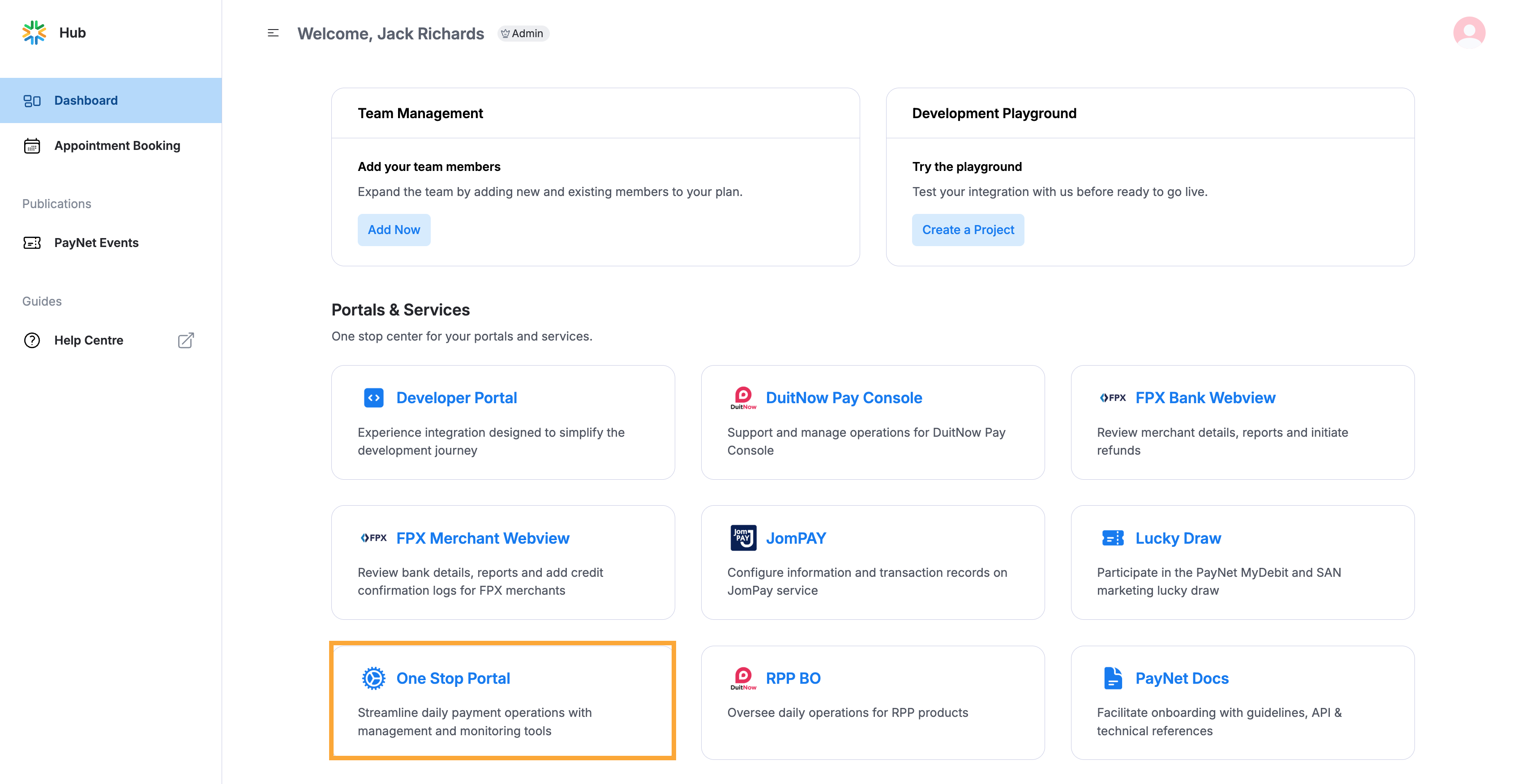
One Stop Portal
- Select the One Stop Portal option.
- A new tab is deployed displaying the One Stop Portal.
3. Navigate to the Report module:
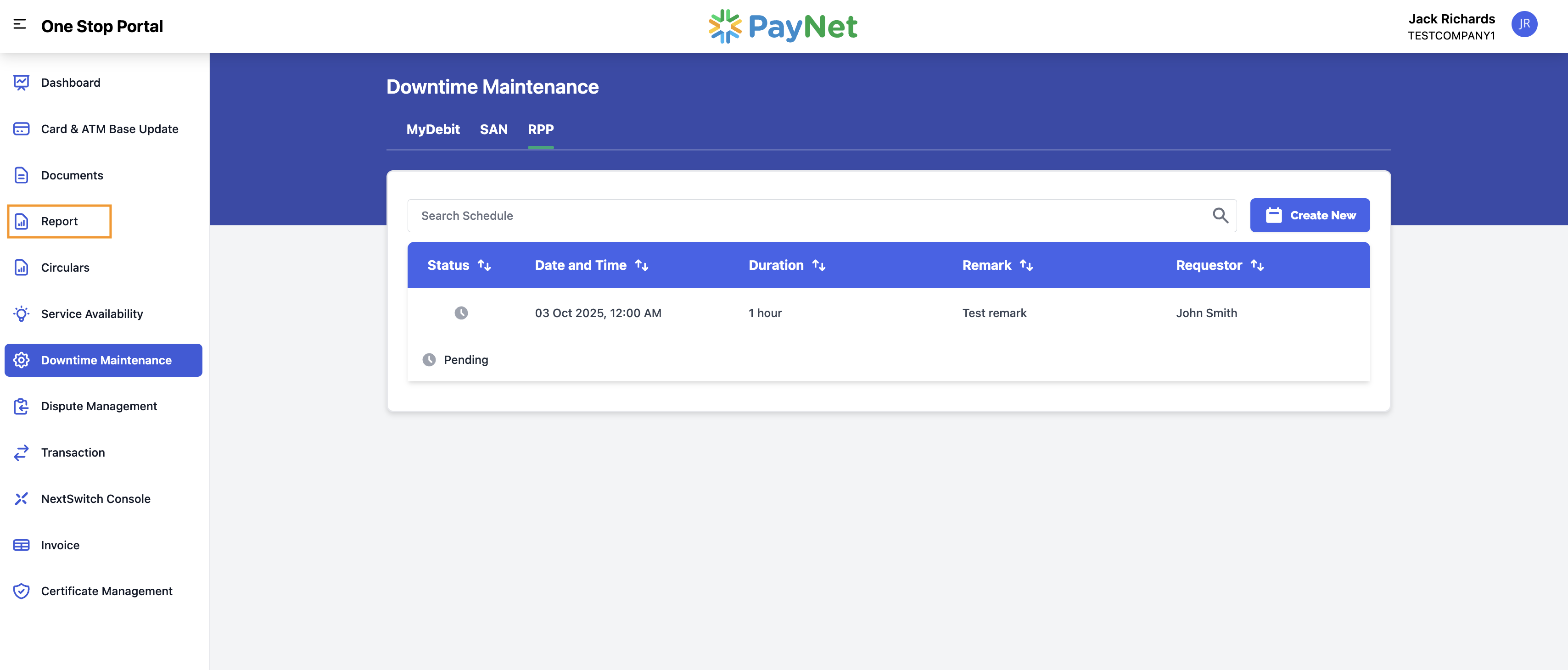
Report module on the sidebar
- Select the “Report” module on the sidebar
✅ Note: Ensure you have access rights to view and generate
reports in this module.
4. Selecting the Service Availability report for RPP:
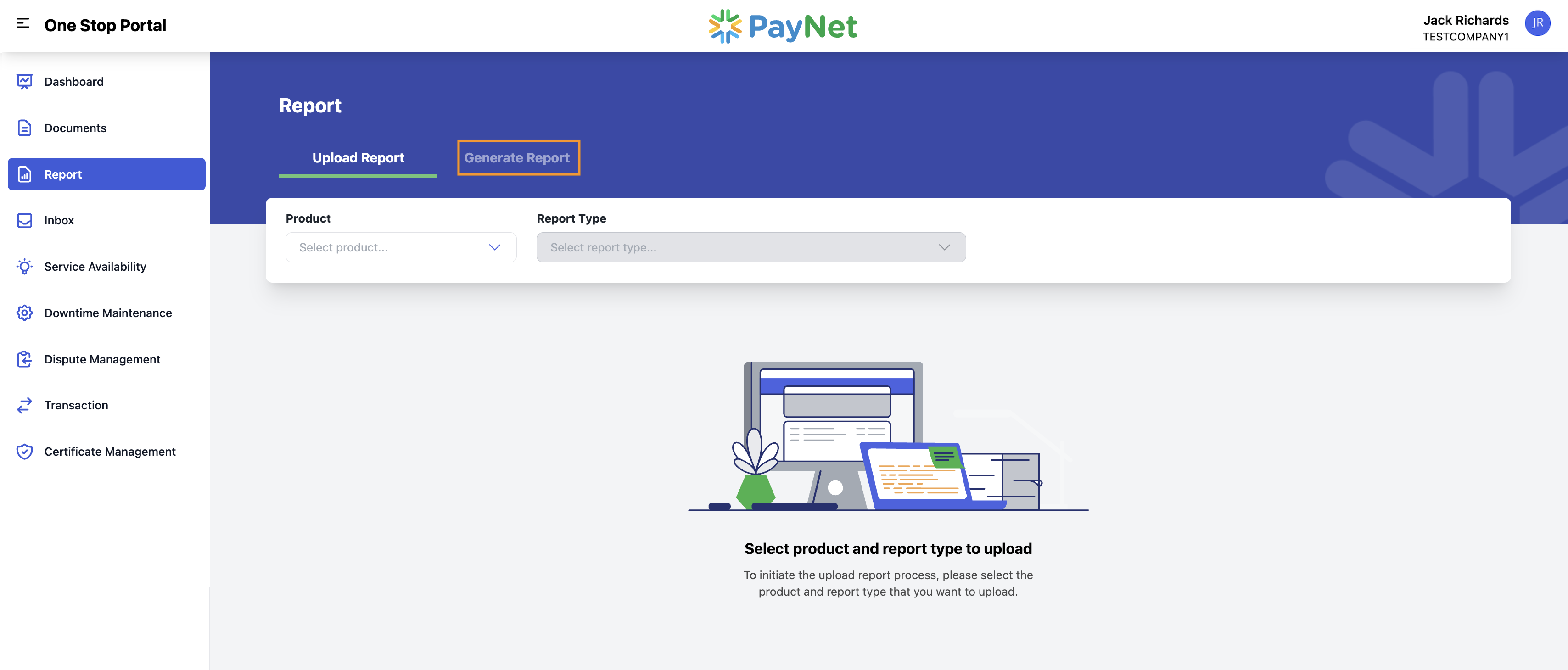
Generate Report tab
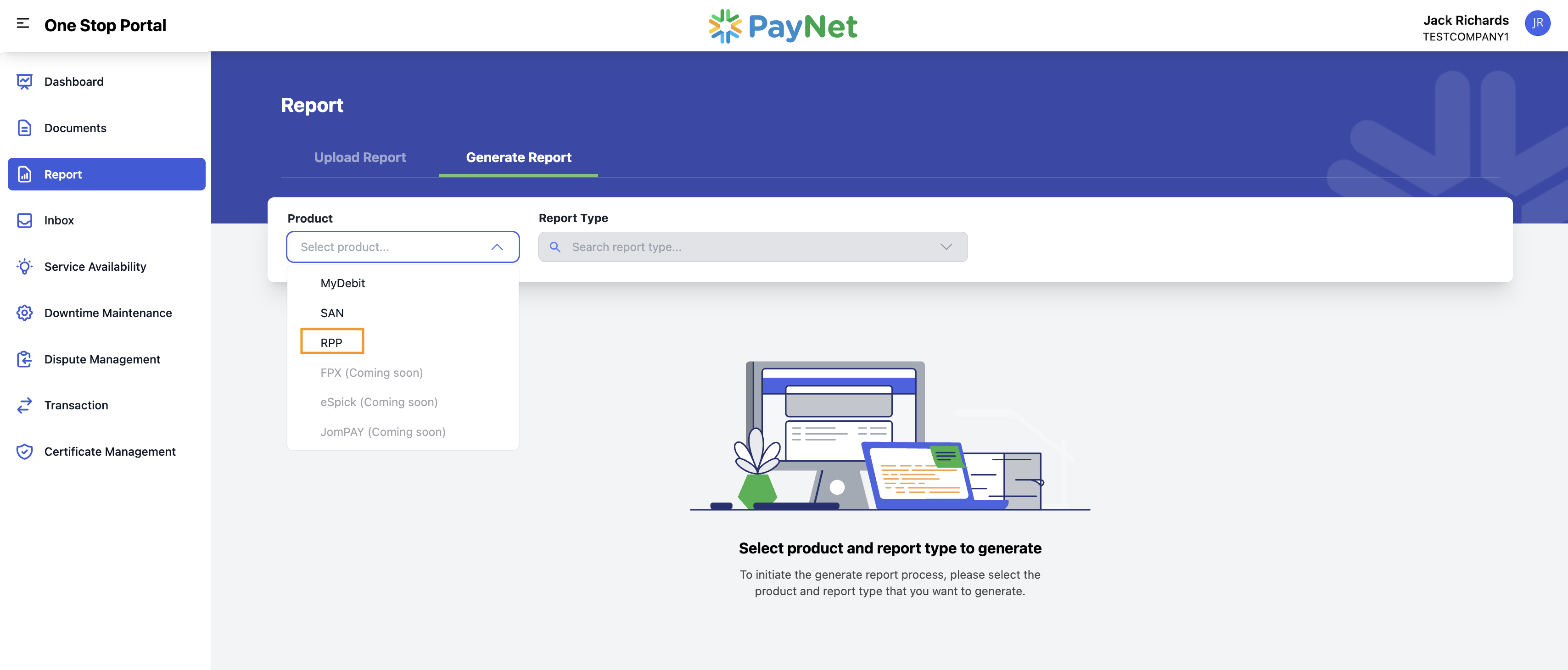
Product dropdown and Report Type
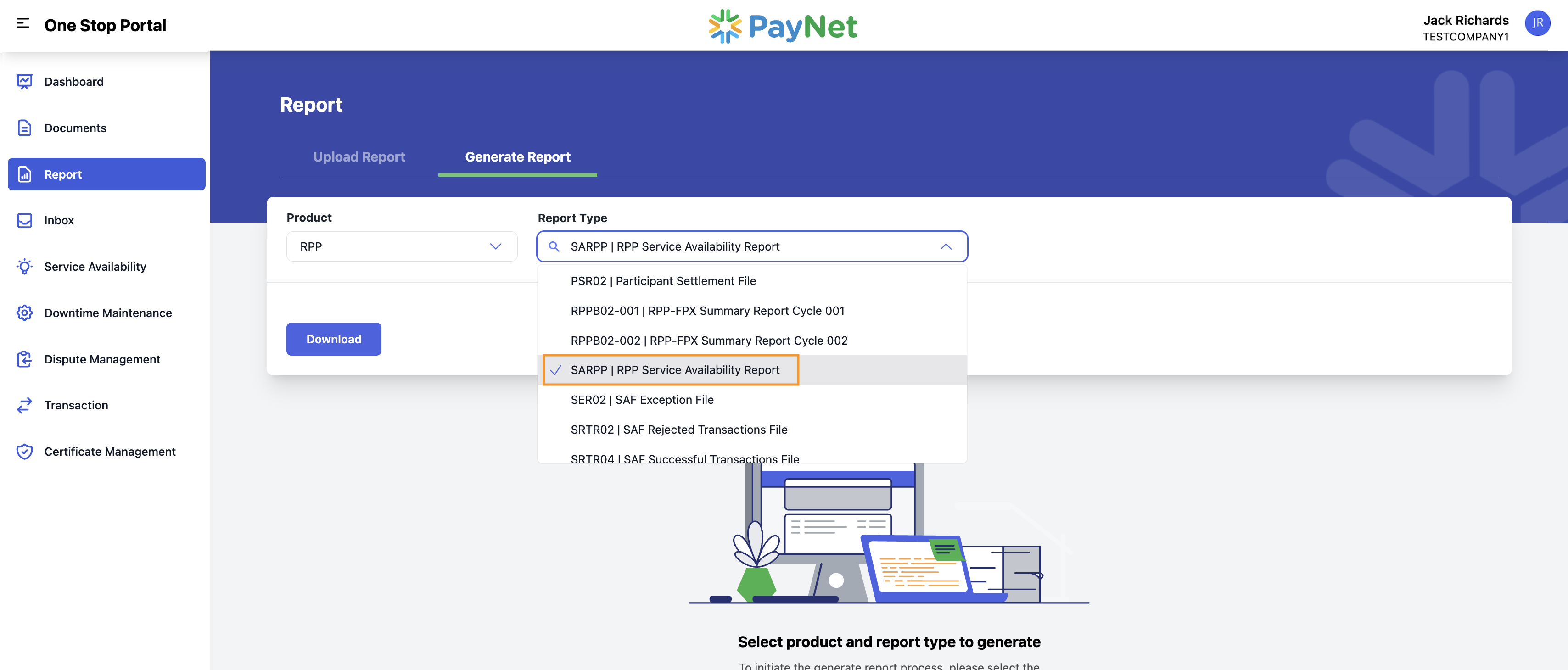
RPP Service Availability selection
- Select the “Generate Report” tab
- In the “Product” field dropdown, select “RPP”
- In the “Report Type”, select “SARPP | RPP Service Availability Report”
💡 Tip: Double-check your Product and Report Type selections
before generating to avoid downloading the wrong report.
⚠️ Warning: The selected report type determines the dataset
returned; incorrect selection may lead to missing or irrelevant data.
5. Click Download:
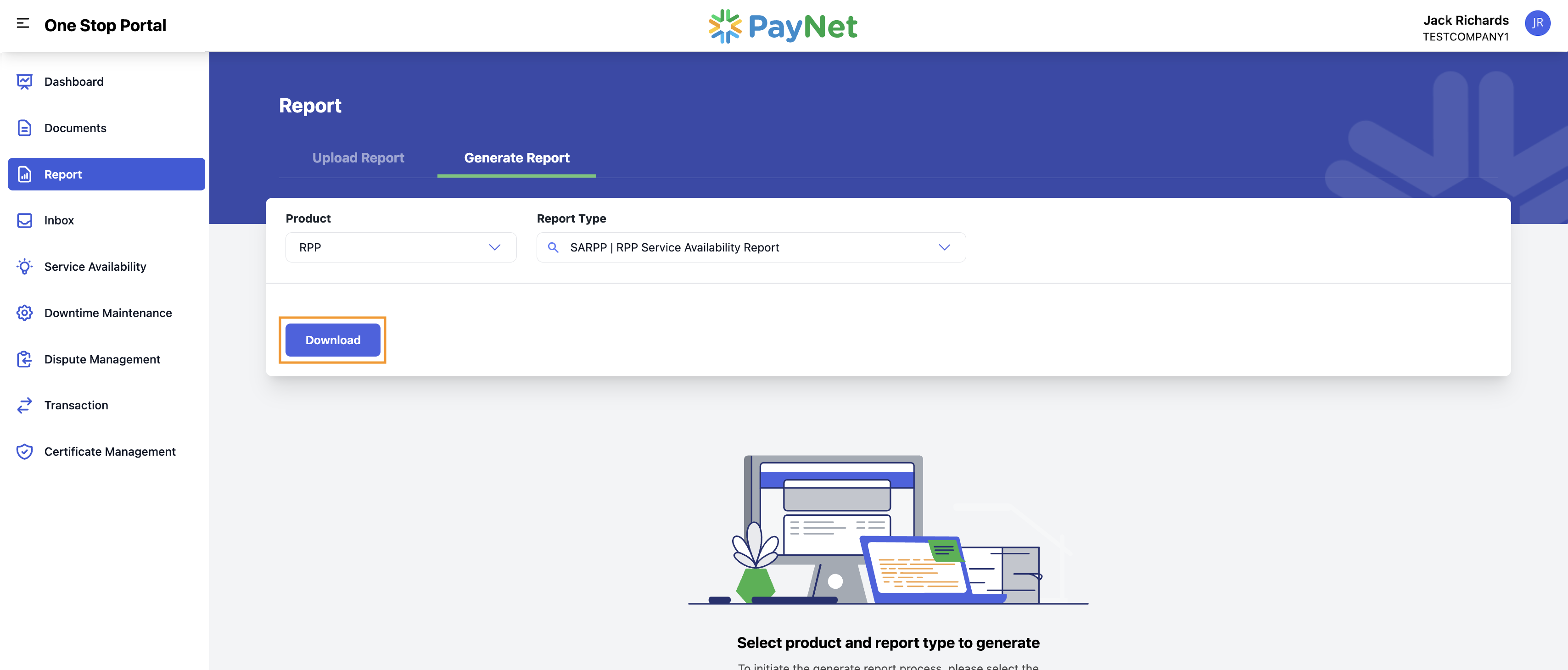
Download report action
- Click on the “Download” button to download the report. Reports are available in .xlsx format
- When the download is complete, the report can be found in your machine’s targeted folder for downloads
✅ Tip: If your browser blocks downloads, allow pop-ups/downloads
for this site or check your download bar.
⚠️ Warning: Ensure you have sufficient local storage
and permissions to save .xlsx files.