1. Go to the Portal
Open the PayNet Dashboard in your browser and log in using your credentials.
2. Click profile icon
Click on the profile icon.
3. Access My Bookings
Click “My Bookings” to manage your current and past bookings.
4. Book an Appointment
Click “Book an Appointment” to begin scheduling a new appointment.
There are 2 types of appointments
- Settlement Testing (RENTAS)
- Schedule Go-Live
5. Select Appointment Type
a) For Settlement/RENTAS Testing, Click “Settlement Testing (RENTAS)” from the appointment type list.
b) For Go-Live, Click “Schedule Go-Live” from the appointment type list.
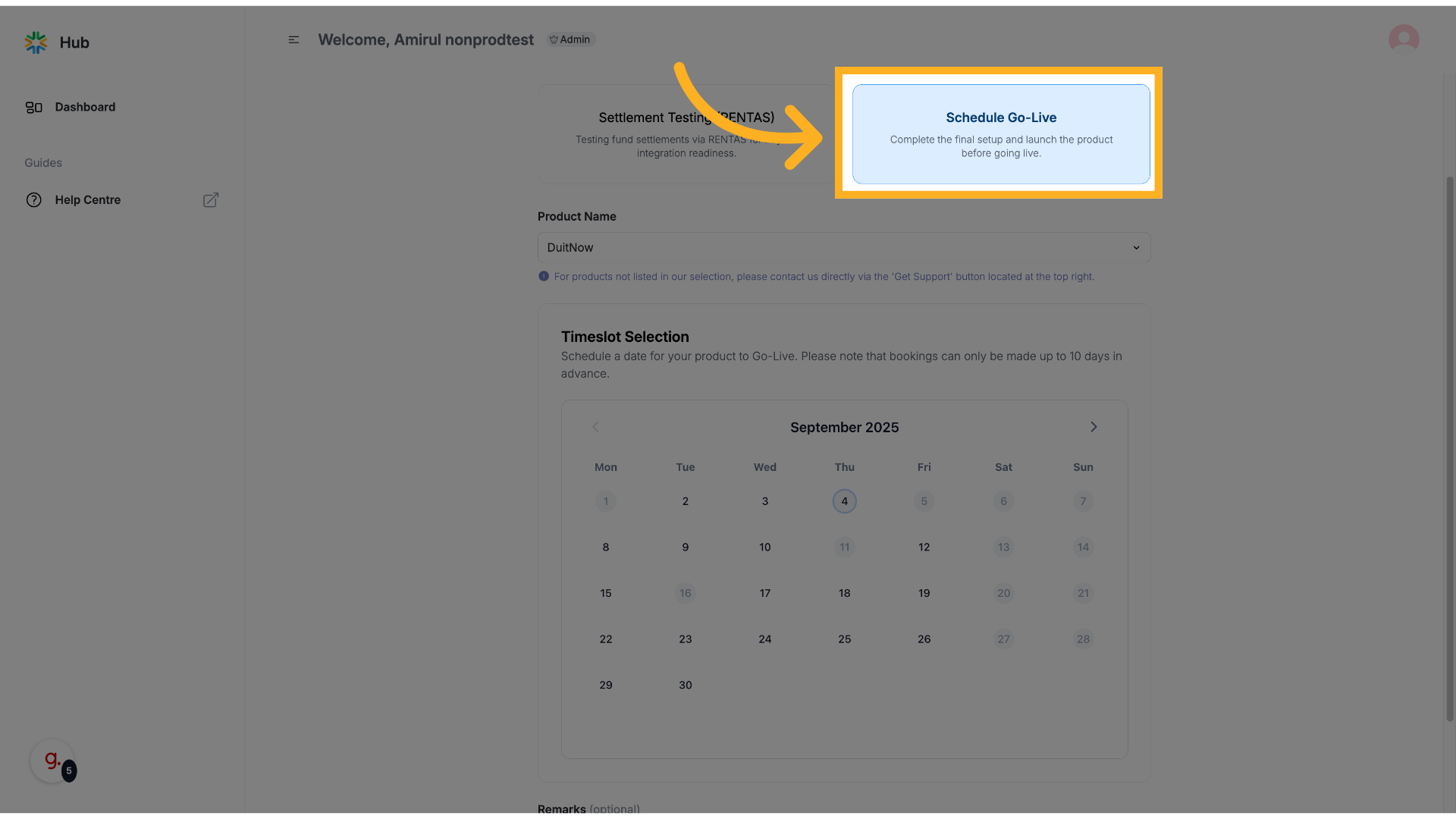
7. Choose a Date Range
Select your preferred date range. Availability will be shown in the format "3/3" meaning three slots available.
Settlement Testing (RENTAS)
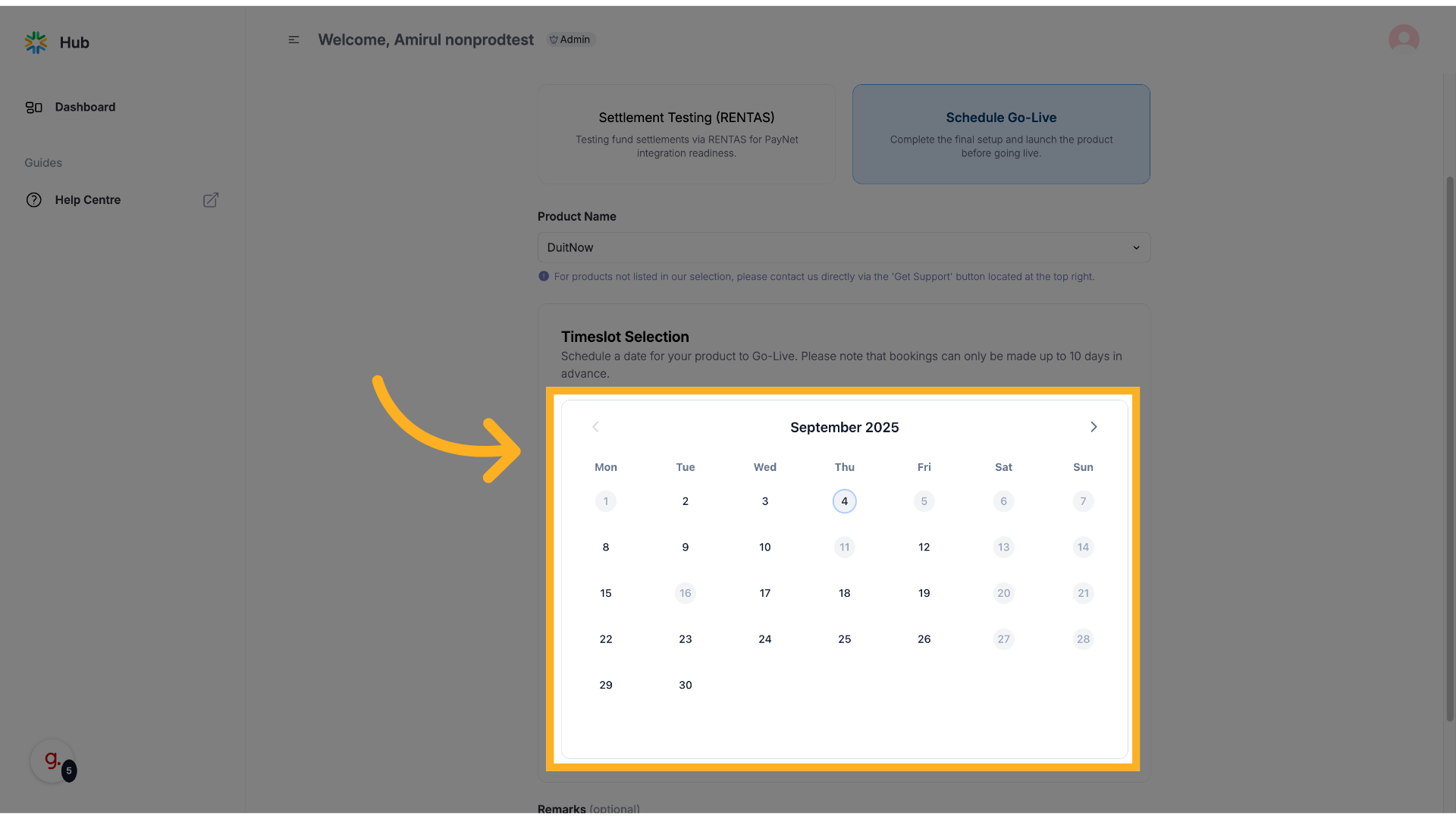
Schedule Go-Live
8. (Optional) Add Remarks
Click “Remarks (optional)” to include any additional information or request.
9. Book the Appointment
Click “Book Appointment” to confirm your selected slot.
10. Submit the Booking
Click “Submit Booking” to finalize and confirm your appointment.
11. Confirmation Message
A confirmation message will appear:
“Appointment Booking is Confirmed! You’ll receive a confirmation email shortly...”
12. View Appointment(s) Booked
Your dashboard will now show all successfully booked appointments.